Blog
Music Visualizer Styles: Bars, Line or Circle for Your Artwork?
Choose a visual treatment that keeps the artwork recognisable.
- Compare Bars, Line and Circle on the same night scene to see how each looks.
- Use Bars for rhythm, Line for a subtler accent or Circle to surround a central focal point.
- Whichever shape you choose, keep it away from the artwork's focal point and text.
Decide what to show in the artwork before choosing a shape
Placement changes the impression as much as the waveform's shape.
Do you want to preserve the wide sweep of the night scene, or draw attention to the moon or a person? Decide that first, and the choice of shape becomes clearer.
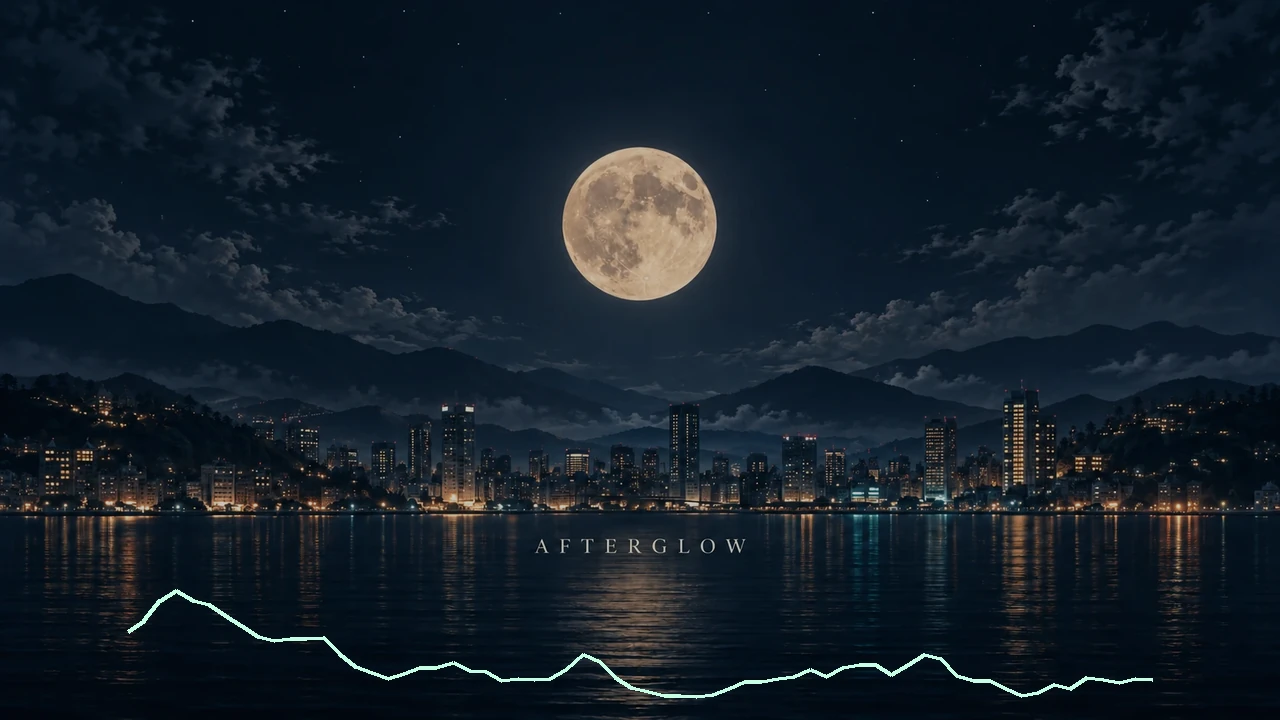
The examples below use the same track and night scene: Bars and Line sit over the water, while Circle surrounds the moon.


Choose from the artwork and its open space
| Artwork and open space | Shape | Appearance and placement |
|---|---|---|
| A skyline or wide landscape | Bars | Bar heights show changes in the music; place them below buildings or the track title |
| Simple artwork with wide open space | Line | One line adds subtle movement |
| A moon, face or round feature in the center | Circle | Motion surrounds the focal point; keep the ring clear of faces and text |
| Artwork filled with a focal point or text | Leave it still | Let the artwork and track speak for themselves |
If there is room along the bottom, start with Bars or Line; if the focal point is central, try Circle.
If you want to move the artwork itself or make it look as though the camera is zooming in, use animation or video editing rather than a waveform.
Settings for this example
| Setting | Bars and Line | Circle |
|---|---|---|
| Width / height | 80% / 16% | 70% / 50% |
| Horizontal / vertical position | 50% / 90% | 50% / 31% |
| Response / smoothing | 1.00× / 80% | 1.00× / 80% |
| Elements / thickness / spacing | 64 / 4px / 4px | 64 / 4px / 4px |
| Color | Soft mint | Soft mint |
| Track / passage | Sample 03 / 3.20–6.20 s | Same as left |
Line does not use the Spacing setting.
Choose a shape and save the video
In Sonoray, you can switch between all three shapes without changing the track or image, then compare them before choosing one.
- In the Editor, load the track and background image, then choose a shape under Visualizer
- Enter the values in the table under Adjust. If the waveform covers the focal point or text, move it first
- Set the passage under Range, then save an MP4 from Export
See Create your first video for the detailed controls.
Compare all three shapes on your own artwork
No sign-in needed. A sample track is included, so you can try it without your own files.